Using the information provided here, I was able to successfully create an email template and send a message using this template.
However, using this template is quite cumbersome - one must go to New Items->More Items->Choose Form...->Change "Look In" path to User Templates In File System->Open.
It's almost faster to just "Forward" a sent email and delete the extraneous forwarding metadata. Can anyone please tell me how to speed this up?
4 Answers
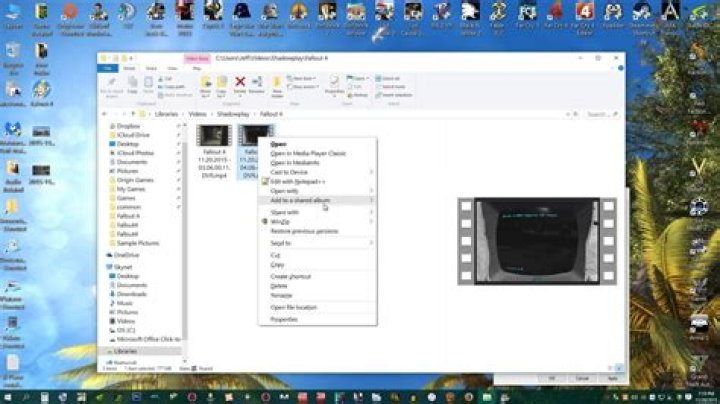
For email templates I use a lot, I simply place a shortcut on your desktop linked to the template. All you need to do is go find your template in Windows Explorer, right click on it and choose Sent to > Desktop (create shortcut)
As it is stated in the article, here are the paths to the templates locations (unless you saved your template elsewhere);
Windows 7 and Windows Vista
c:\users\username\appdata\roaming\microsoft\templatesWindows XP
c:\documents and settings\username\application data\microsoft\templates
Then all you have to do is use the shortcut to open your template in one step.
2I found some info about doing this with a macro, and it works in 2013, but I don't have 2010 to test it on.
If you don't have macros enabled, you will need to go into the Trust Center and enable all macros, which Outlook advises against doing because malicious code could run. Then you have to add a custom group to the ribbon and add macros to that custom group. Then you can get down to making the macro for a new message from a .oft template file. (more MSDN instructions here)
The macro code will look like this:
Sub TemplateName() Set msg = Application.CreateItemFromTemplate("C:\Users\xyz\Desktop\template.oft") msg.Display End Sub If you find the template file in your filesystem (see CharlieRB's answer), then you can drag it to your Taskbar and add it to the Outlook quick menu, so it appears when you right-click. That way it appears next to the New Email and New Meeting shortcuts.
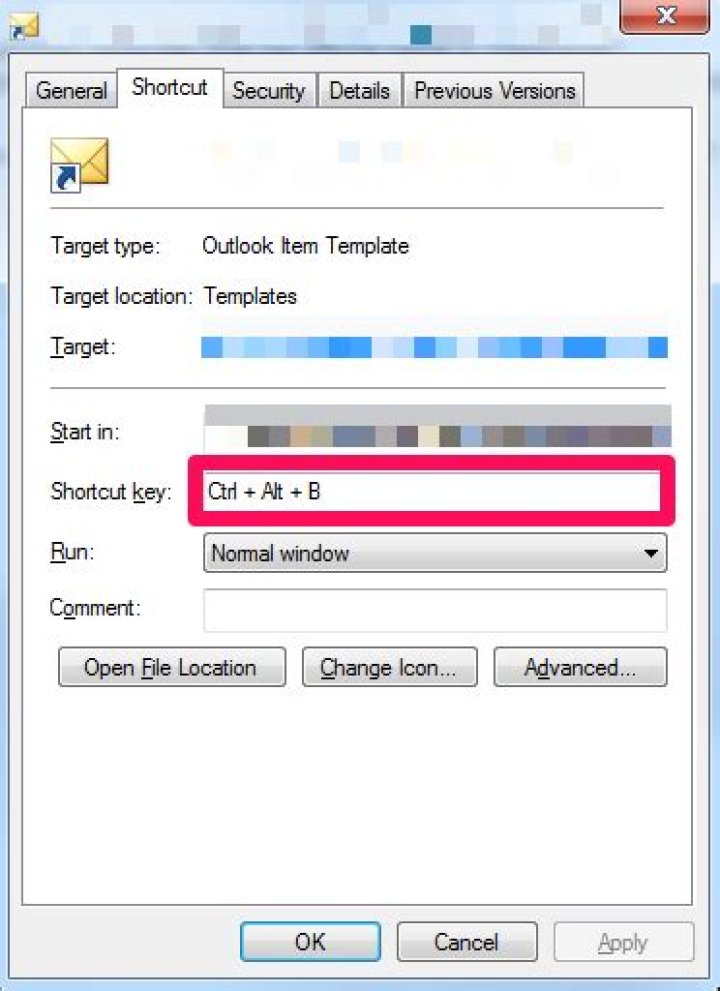
1Thanks to "CharlieRB". You can further make it faster by adding a Global shortcut key as follows.
Add a Global Shortcut key to the item on the desktop as shown in the screenshot. Right click on the Desktop item-> Properties