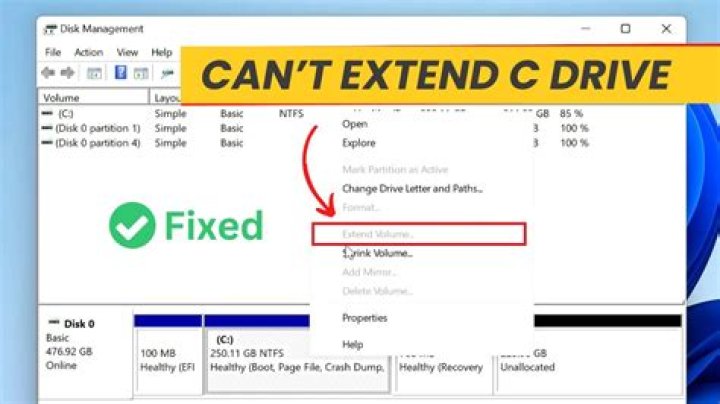
I've searched tutorial "how to extend C partition on Windows 10" on Google. Also i've tried some of those as well. But i still can't find out how to solve this issue. Can anyone help me to point out what the problem is ?

1 Answer
To resize this safely, you'll need a 3rd party partition tool. You can try EaseUS, which I think is still free and I have used it before successfully:
However, the 510MB recovery partition may be useless and may be able to just be deleted.
It really depends on the operating system and configuration. If we look at your existing partition layout we see a pretty normal looking 450MB recovery partition followed by a 100MB EFI System disk, and then the primary C: drive. This is likely a standard windows 10 deployment. The 450MB partition is the Windows Recovery Environment, the EFI System disk holds the boot files.
The question is, what is the 510MB partition for? It's possible this could be for BitLocker and contain BitLocker system files. In this case you definitely should not delete this partition. However, if we look at the image you provided of disk management, none of the partitions are labeled as being Bitlocker Encrypted.
We also know that the 510MB partition isn't big enough to be an OEM recovery image. So, personally, I would take a closer look at that partition and see if I could determine what is on it. You can do that, usually, by assigning a drive letter to it temporarily and browsing the contents. If you don't understand what you see, you can probably post here with a few images of the contents and we can help you further.
However, I am fairly confident this 510MB partition will have no impact on the system if it is removed. But, removing it is definitely done at your own risk. The benefit is that if you remove it, you can easily expand your C: drive to use the rest of the free space. The drawback is that this could be some kind of important partition I have overlooked and your system won't boot anymore.
If you choose to delete it, you can try to do so from within disk management. But, usually the operating system will prevent you from deleting this type of partition.
Instead, you can delete it from the command prompt.
Start command prompt and use the following commands:
diskpart list disk select disk x list partition select partition y delete partition override Replace x with the number of the disk and y with the number of the partition, both are listed during the list commands above. Make sure you are deleting the right partition. Typing in the wrong thing here will be unforgiving.
Deleting the 510MB recovery partition and expanding the C: drive is the quickest, most straight forward way. But, it comes with some risk. Using a 3rd party tool would be the safest, but will take more work.
Good luck, let us know what you come up with!
6