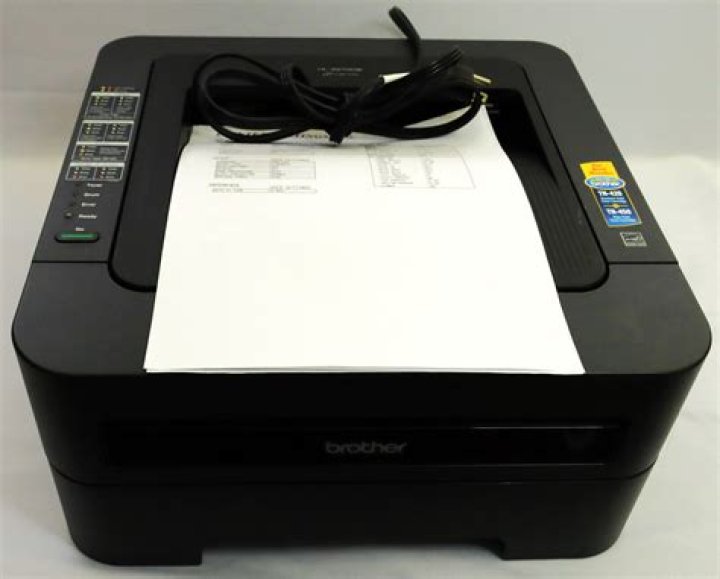
Brother HL-2270DW laser printer Windows driver keeps saying "out of paper", but it isn't. There is no paper jam, there is plenty of paper, and the printer shows a green light. How to fix? I presume there is a problem with one of the sensors/levers, but everything looks good to me. I checked the lever in the front left (that is depressed when the tray is inserted) and it seems to be fine.
Sometimes when I power-cycle the printer, it comes back and will print fine for awhile, but soon it reports again "out of paper". Other times, when I power-cycle the printer, the driver still reports "out of paper" and won't print.
Is there a way to make the printer attempt to print even if the driver thinks that paper is out? Any other suggestions how to fix?
EDIT added info, seeing if the firmware+driver update helped.
Driver:
Device SWD\PRINTENUM\{3FB4D0FD-0CEA-4290-8965-80EAA34E2948} was configured. Driver Name: printqueue.inf Class Guid: {1ed2bbf9-11f0-4084-b21f-ad83a8e6dcdc} Driver Date: 06/21/2006 Driver Version: 10.0.18362.1 Driver Provider: Microsoft The printer's web server reports:
Serial no. : U62674E2N562056 Printer Firmware Version : 1.19 Network Firmware Version : 1.11 Memory Size : 32Mbytes Page Count : 8915 Brother's printer app reports:
Printer Driver Version 1.09 26 Jul 2012 3 Answers
It’s not likely a firmware update or driver is going to fix this issue. It really comes down to sensors. All printers are expecting certain sensors to be in a certain state during different phases of a print job. Very simply, one of those sensors is failing the test. So, either a sensor is obstructed or damaged, or the paper is not properly feeding through the paper path when expected, such as is the case if the pickup roller is malfunctioning.
Service manual is here: Brother Laser Printer Service Manual
Check section 4.1.2 for feed troubleshooting:

Enter Service Personnel Maintenance Mode #10 to check sensors:
How to Enter the Service Personnel-accessible Maintenance Mode This mode function should be accessed by service personnel only for the checking and setting of the printer. Procedure: (1) Check that the front cover is opened. (2) Turn ON the power switch while holding down the [Go] button. Check that the Ready LED lights off after that the all LEDs light up, and then release the [Go] button. (3) Check that all LEDs light off, and then press the [Go] button depending on the necessary number of times. CAUTION : • Each mode starts 2 seconds after pressing the [Go] button. • If the [Go] button is pressed, the Ready LED lights up. If the [Go] button is released, the LED lights off. And Page 5-7 for what sensors to check: 
Do not use alcohol to clean the pickup rollers, it dries and hardens the rubber. I prefer to use xylene, but be careful, it will melt plastic but will clean and soften the rubber. However, the official product to use for this is called “Rubber Rejuvenator.”
For your model, I suspect your pick up roller or edge sensor is not functioning correctly.
1I agree with @appleoddity that drivers and firmware updates will not fix it. The solution given in their answer may be correct.
However, given that the printer shows a green light, it seems to know there is paper in the tray. But, your printer has 2 trays: the main 250-sheet tray, which holds plain A4 or Letter, and the manual feed for other sizes or types.
It is possible that the printer is asked to use paper that is not plain A4/Letter. In that case it will expect it from the manual feed tray. Note that A4 and Letter are different.
If my suspicion is correct, check the driver's default paper settings. Go to Devices and Printers > Printer Properties and click the Advanced tab. Then click the Printing Defaults button and make sure it is set to Plain A4/Letter. If different, correct it and then click OK, lick the General tab, the Printing Preferences button and correct there as well if needed.
And here is another possible issue. The printer senses the size of the paper in the tray by the sliders in it. These sliders should be firmly against the paper. If they're not, the printer will assume a different size is loaded.
Lastly, Microsoft Word stores paper settings with the document, and those settings override the driver. Hence, if you are printing a document created with another printer as the default (e.g. a Letter size document received from the USA, to be printed on A4) the problem will pop up again. To fix this, you need to go to Page Setup. The Page Layout tab lets you set the size; if you need to set the type, click the arrow in the bottom-right corner of the Page Setup section in the ribbon. Note that Word will re-paginate the page when you change paper size.
2Try installing the latest driver – Moab Jul 18 at 17:38
After uninstalling the driver and reinstalling the newer driver per @Moab's comment, the problem has not recurred. I'll come back here and change this if it comes back.