
I have a server with Rackspace. I want to access the database from my local machine command line.
I tried like:
mysql -u username -h my.application.com -ppassword But it gives an error:
ERROR 2003 (HY000):
Can't connect to MySQL server on 'my.application.com' (10061)
What causes this error and how can I connect to the remote database?
218 Answers
To directly login to a remote mysql console, use the below command:
mysql -u {username} -p'{password}' \ -h {remote server ip or name} -P {port} \ -D {DB name} For example
mysql -u root -p'root' \ -h 127.0.0.1 -P 3306 \ -D local no space after -p as specified in the documentation
It will take you to the mysql console directly by switching to the mentioned database.
8simply put this on terminal at ubuntu:
mysql -u username -h host -p Now hit enter
terminal will ask you password, enter the password and you are into database server
0edit my.cnf file:
vi /etc/my.cnf:
make sure that:
bind-address=YOUR-SERVER-IP
and if you have the line:
skip-networking
make sure to comment it:
#skip-networking
don't forget to restart:
/etc/init.d/mysqld restart
For Mac, use the following command:
mysql -u app -h hostaddress -P port -D dbname -p and then enter the password when prompted.
1Try this command mysql -uuser -hhostname -PPORT -ppassword.
I faced a similar situation and later when mysql port for host was entered with the command, it was solved.
1If you want to not use ssh tunnel, in my.cnf or mysqld.cnf you must change 127.0.0.1 with your local ip address (192.168.1.100) in order to have access over the Lan. example bellow:
sudo nano /etc/mysql/mysql.conf.d/mysqld.cnf Search for bind-address in my.cnf or mysqld.cnf
bind-address = 127.0.0.1 and change 127.0.0.1 to 192.168.1.100 ( local ip address )
bind-address = 192.168.1.100 To apply the change you made, must restart mysql server using next command.
sudo /etc/init.d/mysql restart Modify user root for lan acces ( run the query's bellow in remote server that you want to have access )
root@192.168.1.100:~$ mysql -u root -p ..
CREATE USER 'root'@'%' IDENTIFIED BY 'password'; GRANT ALL PRIVILEGES ON *.* TO 'root'@'%' WITH GRANT OPTION; FLUSH PRIVILEGES; If you want to have access only from specific ip address , change 'root'@'%' to 'root'@'( ip address or hostname)'
CREATE USER 'root'@'192.168.1.100' IDENTIFIED BY 'password'; GRANT ALL PRIVILEGES ON *.* TO 'root'@'192.168.1.100' WITH GRANT OPTION; FLUSH PRIVILEGES; Then you can connect:
nobus@xray:~$ mysql -h 192.168.1.100 -u root -p tested on ubuntu 18.04 server
1try
telnet 3306. If it doesn't open connection, either there is a firewall setting or the server isn't listening (or doesn't work).run
netstat -anon server to see if server is up.It's possible that you don't allow remote connections.
I assume you have MySQL installed on your machine. Execute the command below after filling missing details:
mysql -uUSERNAME -pPASSWORD -hHOSTNAME -P3306 mysql servers are usually configured to listen only to localhost (127.0.0.1), where they are used by web applications.
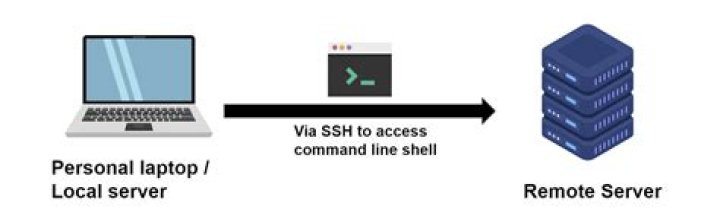
If that is your case but you have SSH access to your server, you can create an ssh tunnel and connect through that.
On your local machine, create the tunnel.
ssh -L 3307:127.0.0.1:3306 -N $user@$remote_host (this example uses local port 3307, in case you also have mysql running on your local machine and using the standard port 3306)
Now you should be ale to connect with
mysql -u $user -p -h 127.0.0.1 -P 3307 There is simple command.
mysql -h {hostip} -P {port} -u {username} -p {database} Example
mysql -h 192.16.16.2 -P 45012 -u rockbook -p rockbookdb you can use the following code to connect to a remote MY SQL database
mysql -u {database_user} -p{db_password} -h {host_name} -P {port_number} mysql -u admin -p'your_password' -h your-company.aws.com -P 3306 Must check whether incoming access to port 3306 is block or not by the firewall.
1this solution worked for me:
On your remote machine (example: 295.13.12.53) has access to your target remote machine (which runs mysql server)
ssh -f -L 295.13.12.53:3306:10.18.81.36:3306 user@295.13.12.53 Explained:
ssh -f -L your_ssh_mashine_ipaddress:your_ssh_mashine_local_port:target_ipaddress:target_port user@your_ip_address -N your_ssh_mashine_ipaddress - it is not local ip address, it is ip address that you ssh to, in this example 295.13.12.53
your_ssh_mashine_local_port -this is custom port not 22, in this example it is 3306.
target_ipaddress - ip of the machine that you trying to dump DB.
target_port - 3306 this is real port for MySQL server.
user@your_ip_address - this is ssh credentials for the ssh mashine that you connect
Once all this done then go back to your machine and do this:
mysqldump -h 295.13.12.53 -P 3306 -u username -p db_name > dumped_db.sql Will ask for password, put your password and you are connected. Hope this helps.
Try this, Its working:
mysql -h {hostname} -u{username} -p{password} -N -e "{query to execute}"
This one worked for me in mysql 8, replace hostname with your hostname and port_number with your port_number, you can also change your mysql_user if he is not root
mysql --host=host_name --port=port_number -u root -p You should put your password with 'p'
mysql -u root -u 1.1.1.1 -p'MyPass' I was too getting the same error. But found it useful by creating new mysql user on remote mysql server ans then connect. Run following command on remote server:
CREATE USER 'openvani'@'localhost' IDENTIFIED BY 'some_pass'; GRANT ALL PRIVILEGES ON *.* TO 'openvani'@'localhost WITH GRANT OPTION; CREATE USER 'openvani'@'%' IDENTIFIED BY 'some_pass'; GRANT ALL PRIVILEGES ON *.* TO 'openvani'@'%' WITH GRANT OPTION; FLUSH PRIVILEGES; Now you can connect with remote mysql with following command.
mysql -u openvani -h 'any ip address'-p Here is the full post:
If you are on windows, try Visual Studio Code with MySQL plugins, an easy and integrated way to access MySQL data on a windows machine. And the database tables listed and can execute any custom queries.