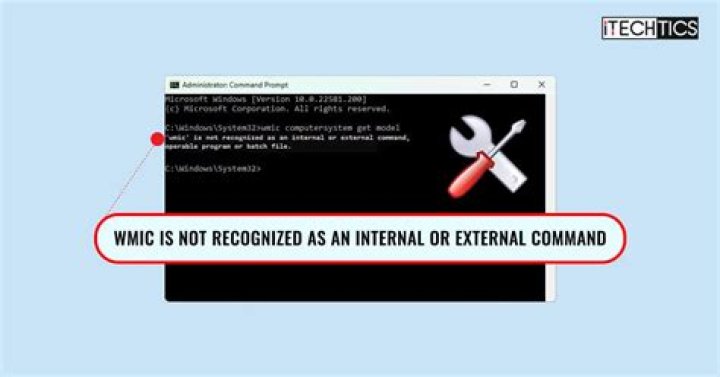

I have downloaded both Java jdk1.7.0_06 and Java jre7. and i added the following system variable JAVA_HOME C:\Program Files\Java\jdk1.7.0_06\bin to my windows 7. But when I type the following in the CMD command line on my windows 7 C:\activiti-5.10\activiti-5.10\setup>ant demo.start to run a demo application I got the following error in the command line '
"java.exe"' is not recognized as an internal or external command, operable program or batch file
So does anyone know how i can solve this problem ? BR
17 Answers
If you look at the "ant.bat" file, you will see that it looks for the "java" command in the following way:
- If the
%JAVACMD%environment variable is set, then it uses that. - Otherwise, if the
%JAVA_HOME%environment variable is set, it tries to use%JAVA_HOME%\bin\java.exe - Otherwise, it tries to use
java.exe; i.e. it will look on your %PATH%.
In your case, you have %JAVA_HOME% set ... but set to the Java installation's "bin" directory, not to the root of the installation. So the Ant.bat script looks in the wrong place for java.exe.
Just set %JAVA_HOME% correctly, and it should work.
JAVA_HOME C:\Program Files\Java\jdk1.7.0_06 As you can see from the above, you do not need to have the Java "bin" directory on your %PATH% for Ant to work, but it is a good idea to set it anyway. That way you can run the Java commands simply from the command line.
The setting of %CLASSPATH% is not relevant to this problem. Indeed, unless the build.xml file is broken, Ant will ignore your %CLASSPATH% environment variable.
You need to put the file java.exe in your PATH variable but the JRE in JAVA_HOME
2JAVA_HOME is the path of JDK root folder.eg: C:\Program Files\Java\jdk1.7.0_06 but path define C:\Program Files\Java\jdk1.7.0_06\bin
JAVA_HOME C:\Program Files\Java\jdk1.7.0_06 JRE_HOME C:\Program Files\Java\jre1.7.0_06 path = C:\Program Files\Java\jdk1.7.0_06\bin;C:\Program Files\Java\jre1.7.0_06\bin Typically JAVA_HOME should be the parent directory of the "bin" folder.(jre or jdk)
In this case ant expects the java to be from the JDK.
try following in a cmd window
set JAVA_HOME=C:\Program Files\Java\jdk1.7.0_06 set path="%JAVA_HOME%/bin;%path%; ant (side note: adding java.exe to path is not a requirement for ant; it is a convenience thing for the user)
1Just delete the following set of files from your %windir/System32 folder. Actually deleting java.exe is enough but for consistency sake just delete all the java related binaries.
- java.exe
- javaw.exe
- javaws.exe
Actually oracle windows installer places a copy of these files into %windir/System32 folder (which I don't understand why) but looks like they are not needed (as they are available anyway under JDK folder where you install them).
I have tried all the various solutions posted in the SO and other forums as well but none of them worked for me. I have also set all the relevant environment variables (JAVA_PATH, CLASS_PATH etc) correctly as well. Finally this is the only solution that has worked for me.
Go to the \squirrel-sql-3.9.0>squirrel-sql.bat .open that squirrel-sql.bat in Notepad and comment out the existing logic which is
======================================= if exist "%IZPACK_JAVA%\bin\javaw.exe" ( set LOCAL_JAVA=%IZPACK_JAVA%\bin\javaw.exe ) else ( set LOCAL_JAVA=javaw.exe ) echo Using java: %LOCAL_JAVA% ================================= and add the below logic
@echo off set LOCAL_JAVA=C:\Program Files (x86)\Java\jre7\bin\javaw.exe echo Using java: %LOCAL_JAVA% ================================ make sure you add the correct path of javax.exe while adding above logic set LOCAL_JAVA=
and start the .bat file from CMD ..that's it. It should work. It worked for me.
I agree with the above explanation but if the problem still persists try setting: CLASSPATH = C:\Program Files\Java\jdk1.7.0_06\bin
4